


To access your account, training courses, and other features available to signed in users, sign in to MyLearningDay.
Depending on the platform configuration, you can sign in using:
Note: The available sign in methods depend on the MyLearningDay configuration.
To sign in to MyLearningDay:
After signing in successfully, you can access your account and the features available to signed in users.
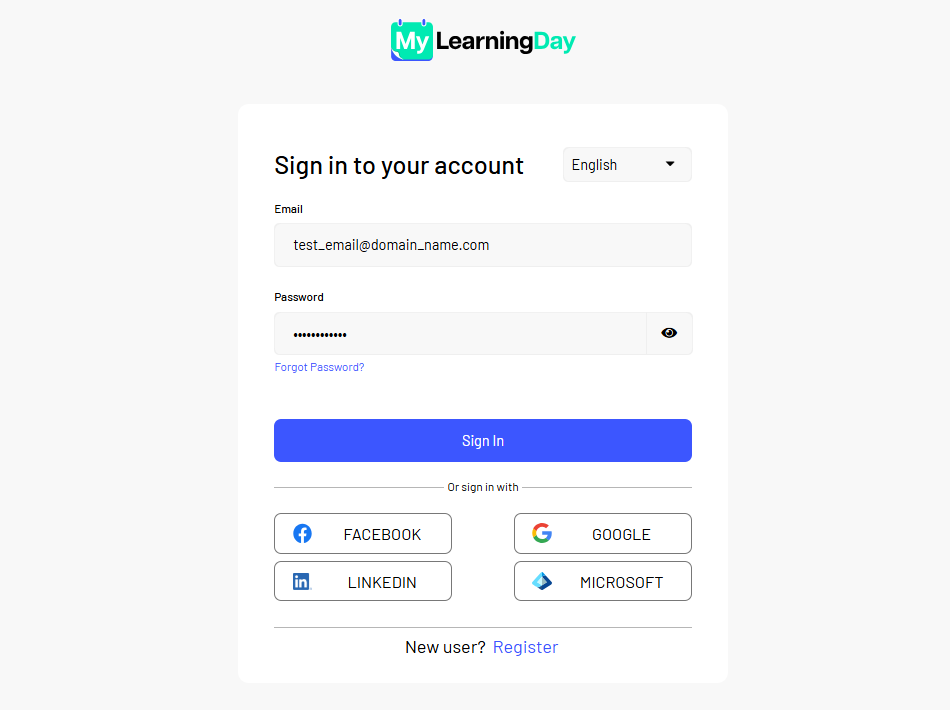
If external sign in methods are available in MyLearningDay, you can use an account from a supported provider without entering a separate password for MyLearningDay.
To sign in:
Note: The available external sign in methods depend on the MyLearningDay configuration. The authentication process may vary slightly depending on the selected provider.
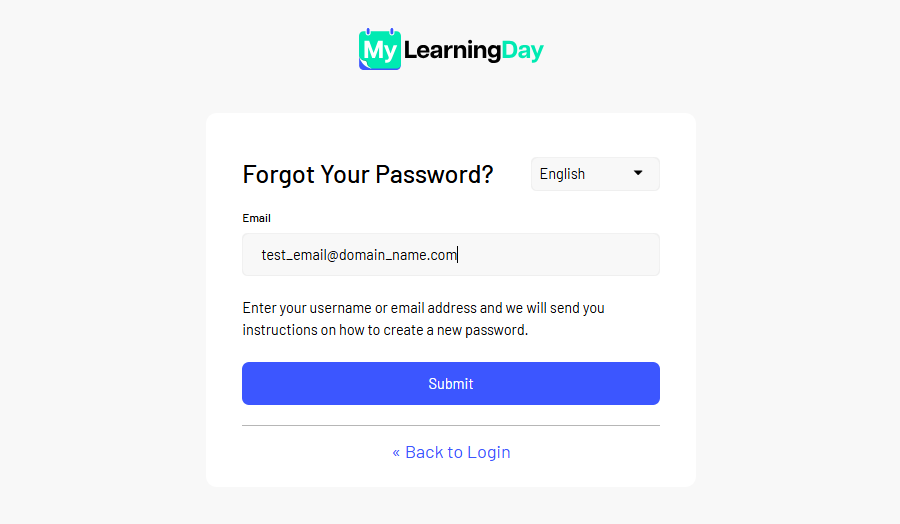
If you have forgotten your MyLearningDay account password, you can set a new one from the sign in page.
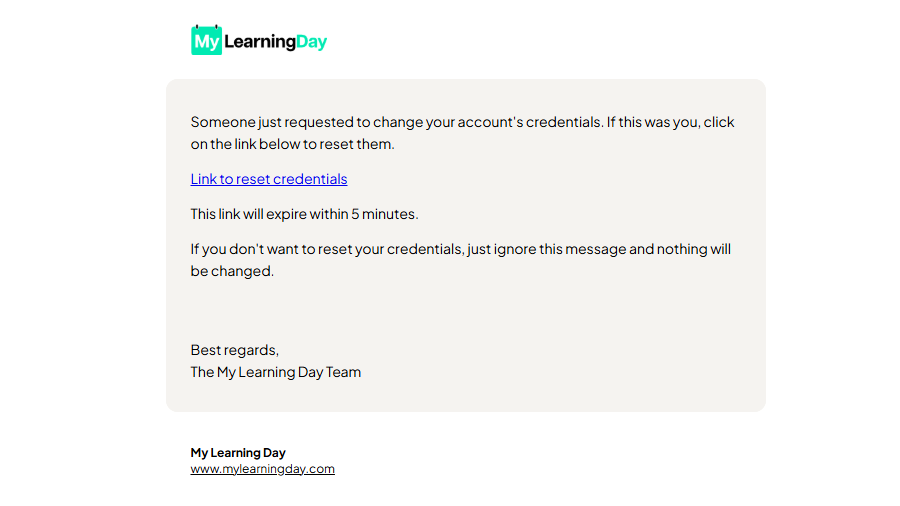
To reset your password:
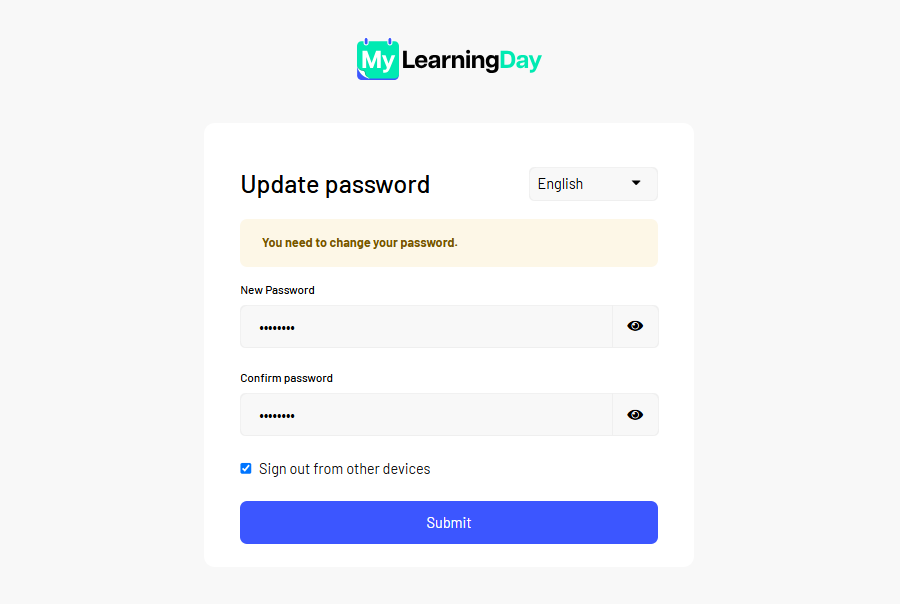
After changing your password successfully, you can sign in to MyLearningDay using your new password.
Important: When changing your password, you can select Sign out from other devices to end any other active sessions for your account on other devices.
If the password reset message does not appear in your inbox, check your spam or junk folder as well.
When you have finished using MyLearningDay, you can sign out of your account.
To sign out:
Once you sign out, your MyLearningDay session is closed.
Done! You have been signed out of MyLearningDay.
Important: Signing out is particularly recommended when you use MyLearningDay on a shared or public device.