


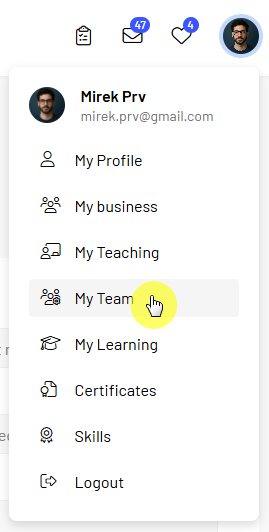
If you are a manager, the My Team section allows you to monitor your team members' learning progress, check their course completion and certificates, and enroll them in courses.
Note: The My Team section is available to users who have at least one direct report.
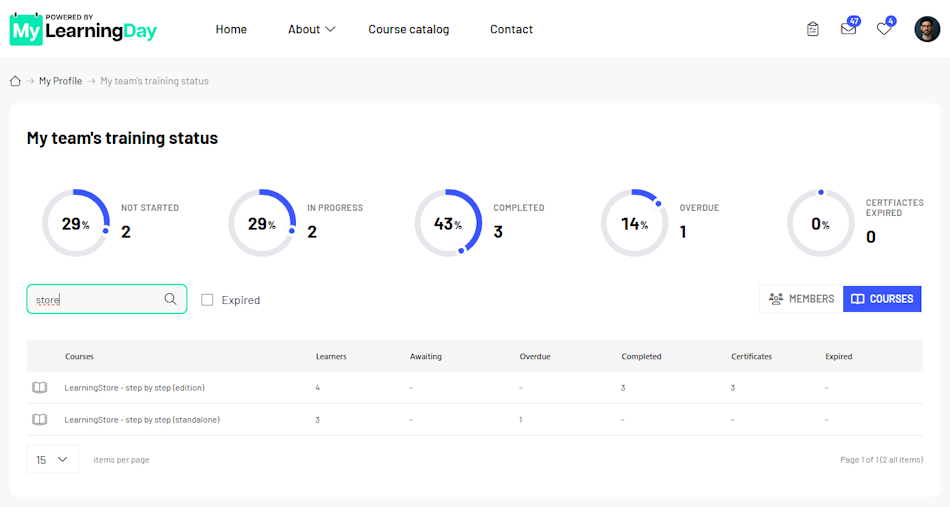
The My Team view gives you a quick overview of your team members' learning progress.
The summary shows how many courses are:
You can also check whether team members have expired certificates. This is particularly useful for recurring training that may need to be completed again after a certificate expires.
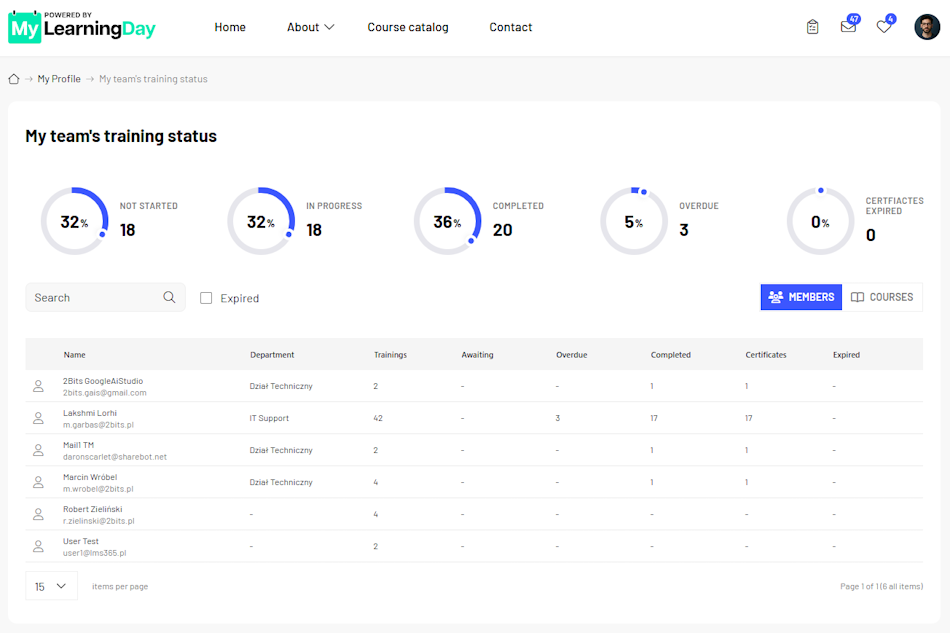
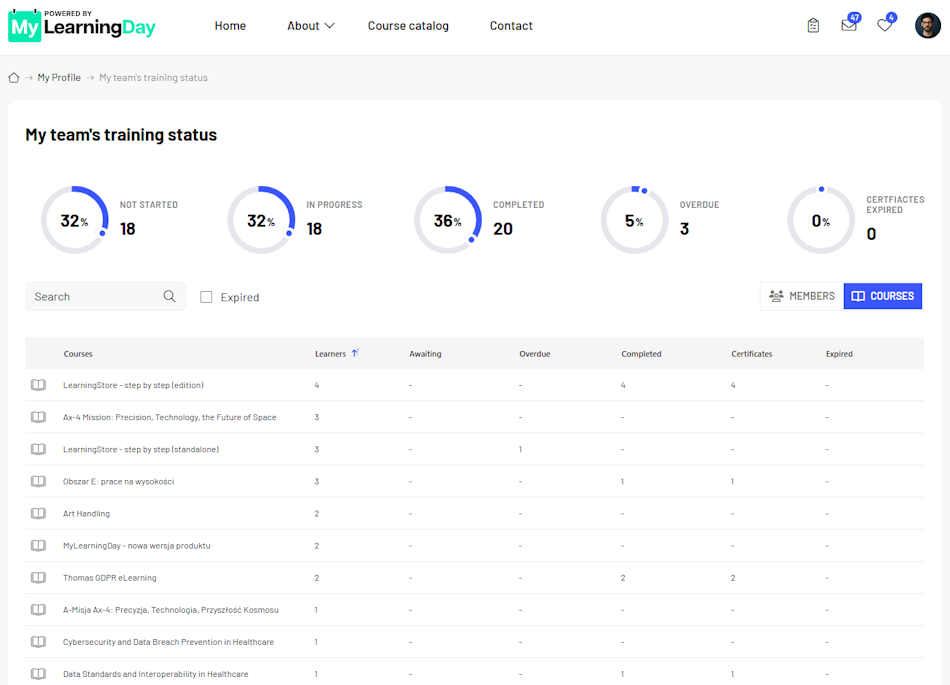
Further down the page, you can find detailed information about team members and their courses. Depending on what you want to review, you can view the information by team member or by course.
To review the learning progress of a specific team member:
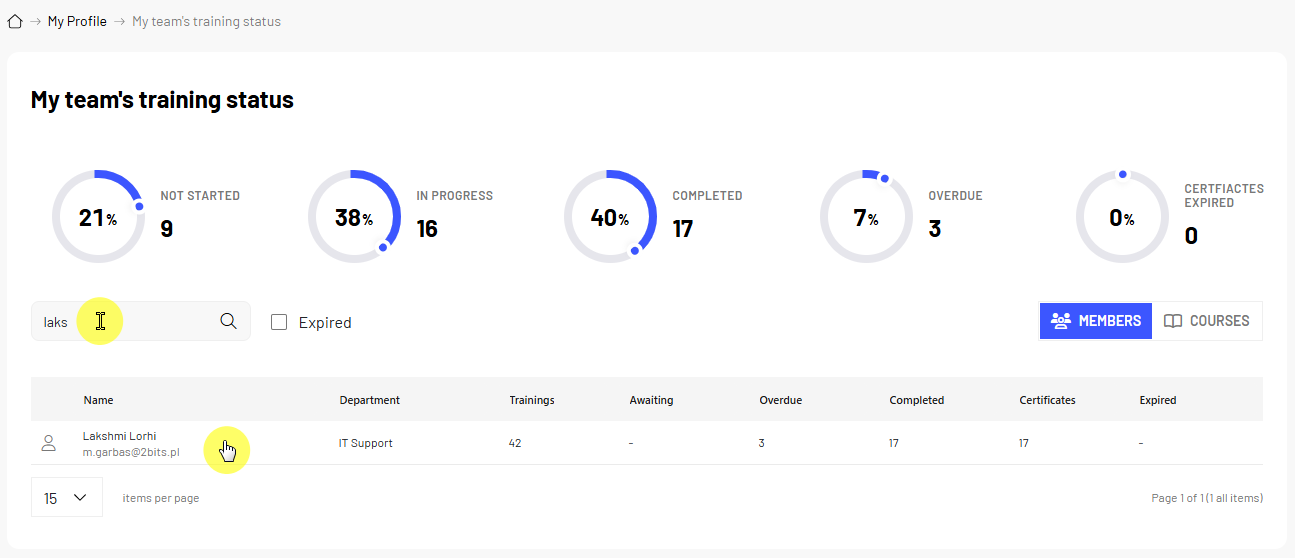
In the details, you can see which courses have not yet been started, which are in progress, and which have been completed.
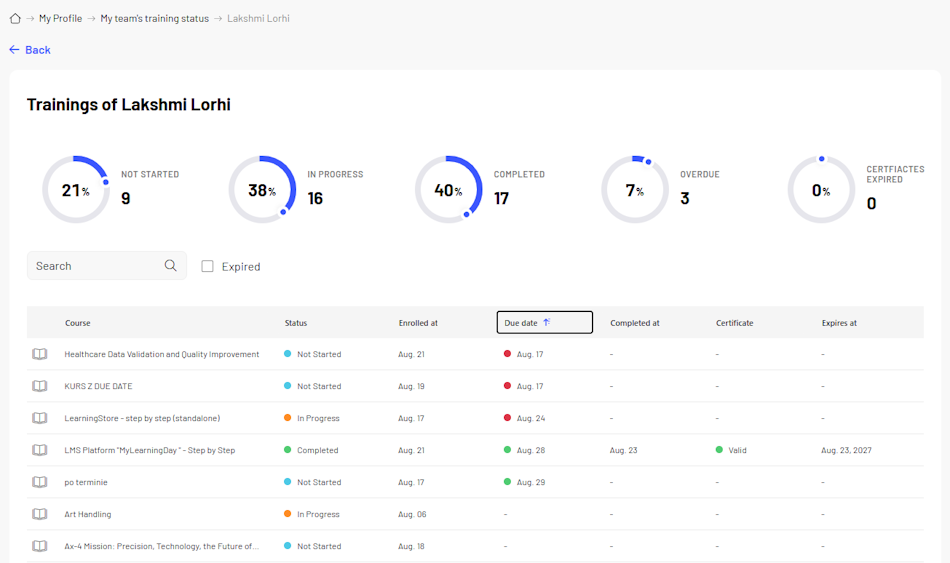
You can also check certificate information, including the certificate status and expiration date, if applicable.
If a certificate has expired, this information can help you identify a course that may need to be completed again.
As a manager, you can enroll your direct reports in available courses.
To enroll a team member:
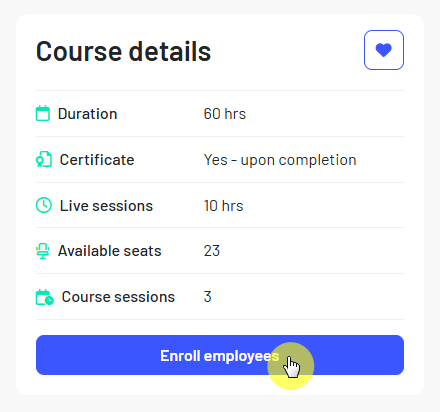
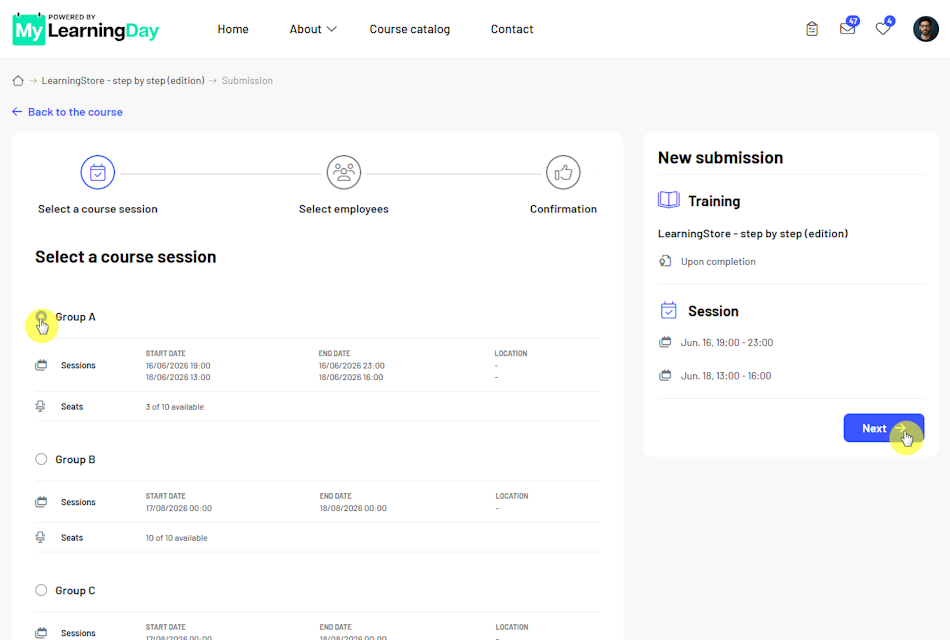
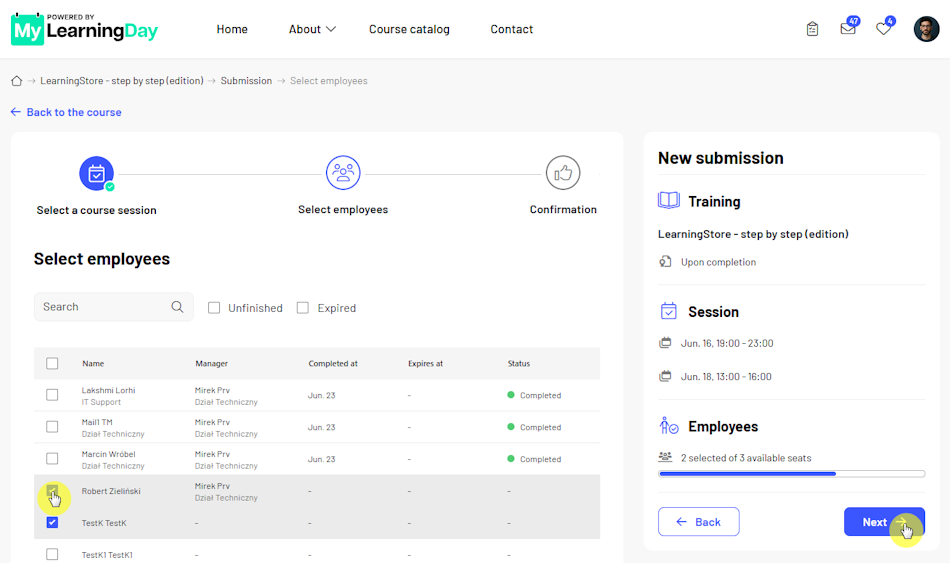
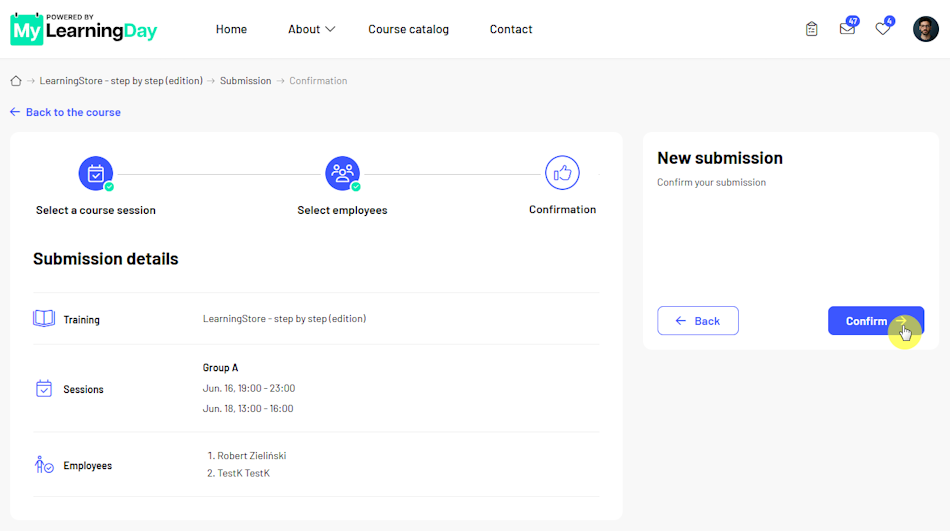
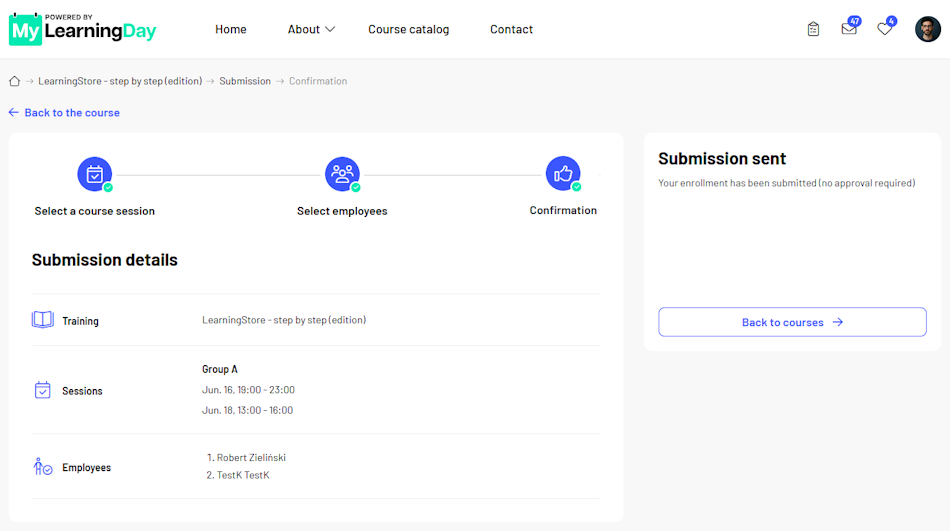
Before confirming, pay particular attention to the selected session and the list of team members. This helps prevent enrolling someone in the wrong session or course.
Once the enrollment is complete, the course will appear in the training information for the enrolled team members.
Note: Whether you can enroll a team member in a specific course depends on the course configuration and enrollment availability.
If a team member is enrolled in a course, you can cancel their enrollment from their course information.
To cancel an enrollment:
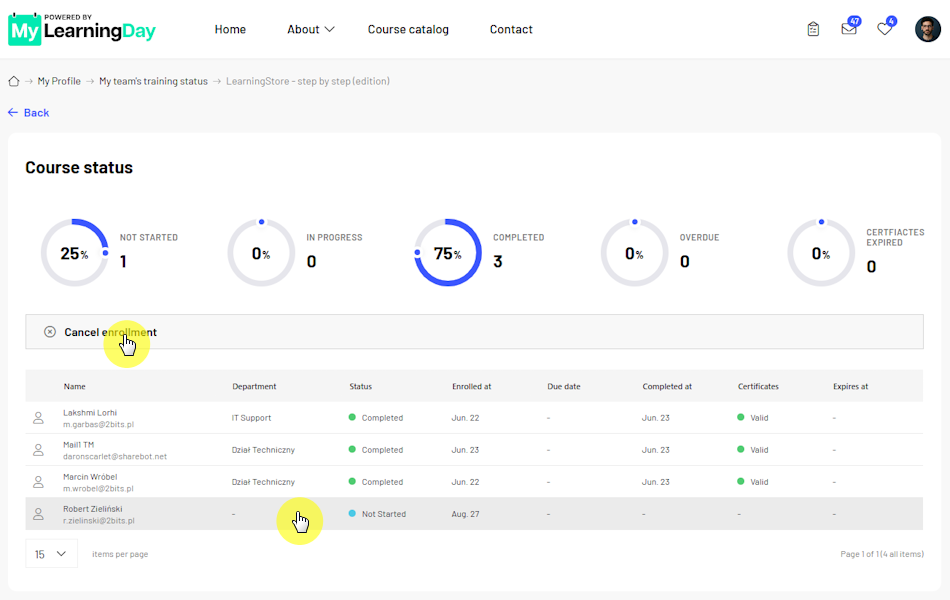
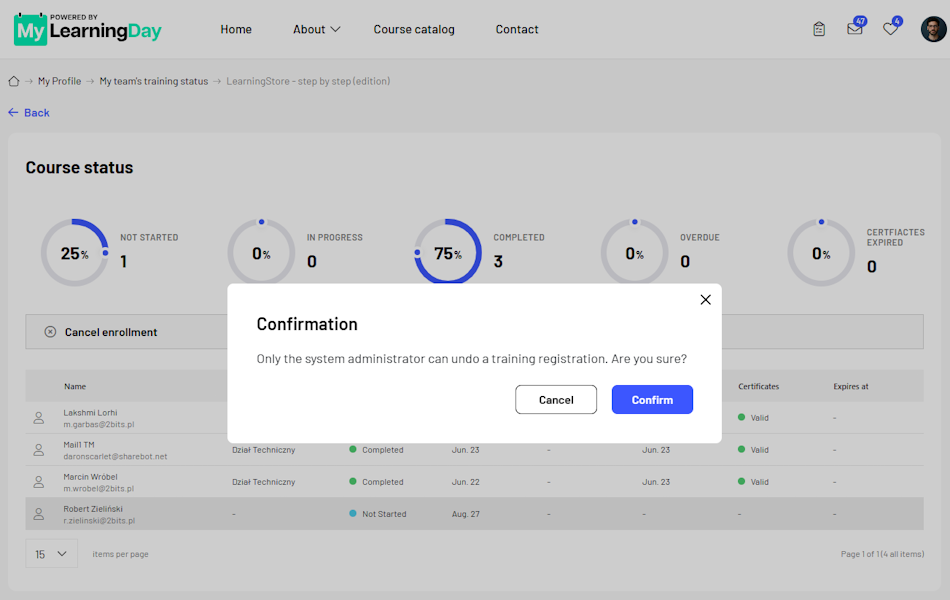
Before confirming, make sure you are canceling the correct team member's enrollment in the correct course.
 See also: Course Enrollment, My Learning, and My Certificates and Skills