


The Favorites feature allows you to save training courses that interest you so you can easily return to them later. Adding a training course to your favorites does not enroll you in the course.
You can add a training course to your favorites while browsing the training offering or directly from the training course page.
To add a training course to your favorites:
After you add the training course, the heart icon changes its appearance and MyLearningDay displays a confirmation message.


Note: Adding a training course to your favorites does not enroll you in the course or give you access to its content. If you want to participate in the training course, you must enroll in it or obtain access in another way.
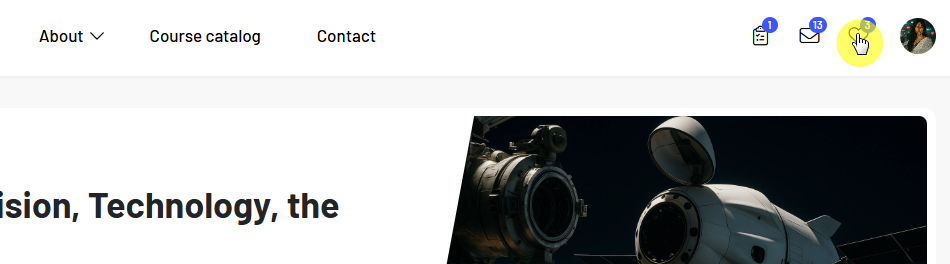
To view your favorite training courses, select the heart icon at the top of the page.
The counter next to the icon shows how many training courses are currently in your favorites.
From the favorites list, you can open a selected training course page to review its details and the available options.
If you no longer want to keep a training course in your favorites, select the active heart icon next to the course again.
The training course is removed from your favorites and the counter is updated accordingly.

 See also: Browsing training courses and Enrolling in training courses