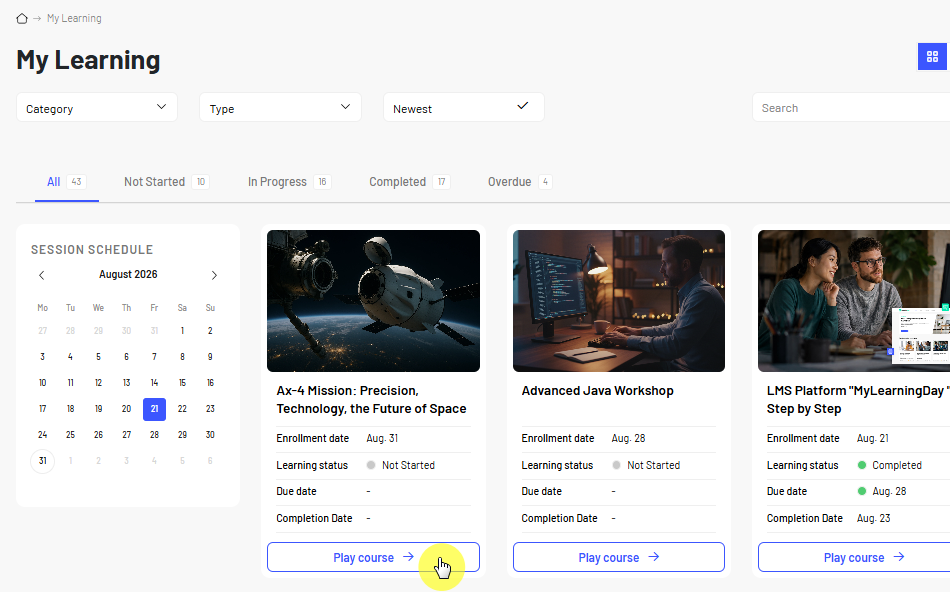

If paid courses are available in MyLearningDay, you can purchase access to them directly from the Course Catalog.
The purchase process includes:
Once the purchase is complete, you are enrolled in the courses you purchased and can start learning right away.
Note: Selling courses is an optional MyLearningDay feature. If it is not enabled for your organization, course prices, the shopping cart, and other purchasing features will not be available.
To purchase a course:

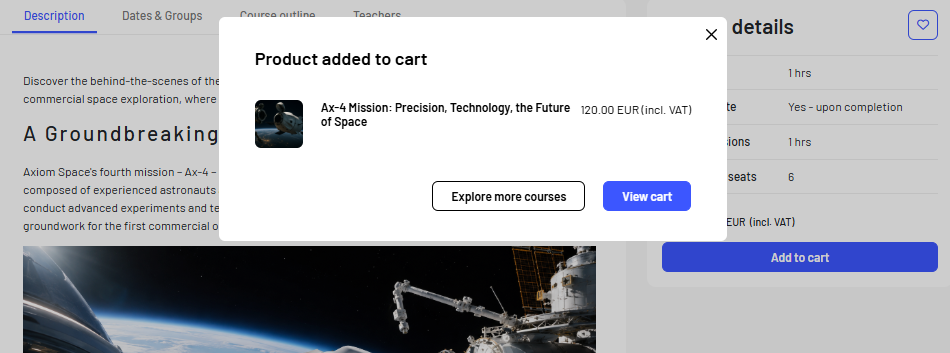
After adding the course, MyLearningDay displays a confirmation and gives you two options:
You can also open your cart at any time by selecting the cart icon at the top of the page. The counter next to the icon shows the number of courses currently in your cart.
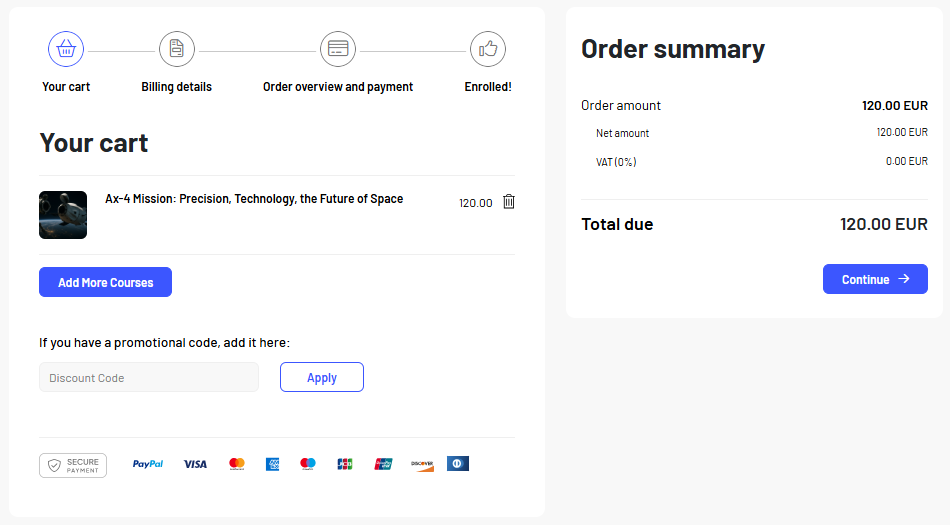
When you open your cart, you can see the courses you are about to purchase and an order summary.
From here, you can:
Before continuing, make sure your cart contains the correct courses.
To proceed with your purchase, select Continue.
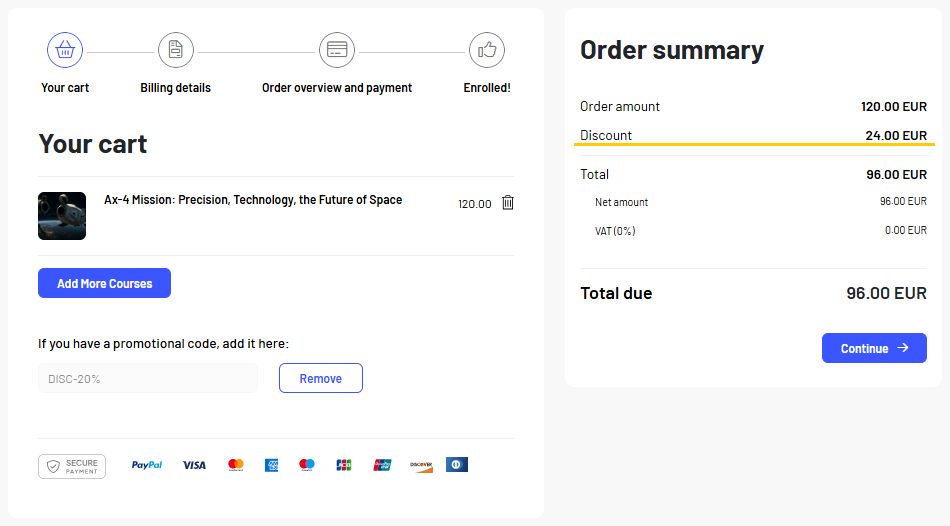
If you have a discount code, you can apply it directly in your cart.
Once the code has been applied successfully, the discount amount appears in the order summary and the amount due is updated accordingly.
If the code cannot be applied, check the message displayed by MyLearningDay for more information.
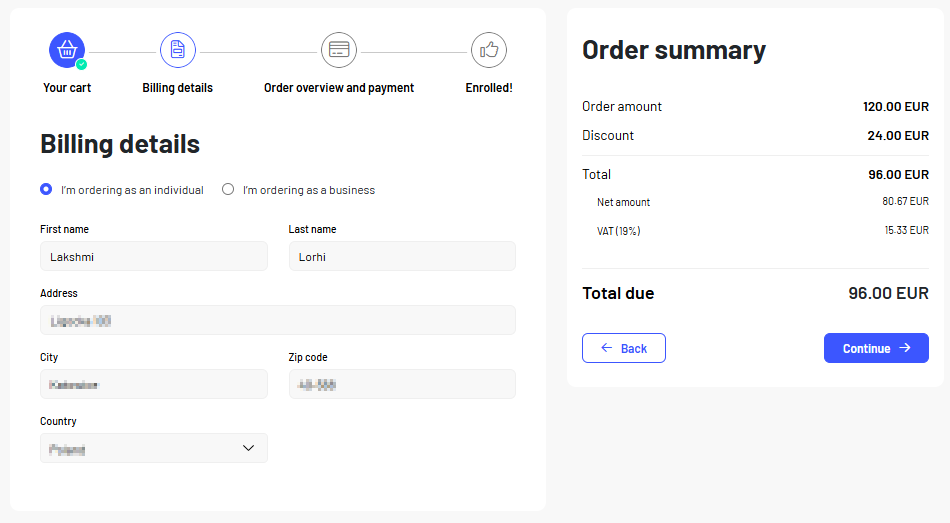
After selecting Continue, you are taken to the billing information step.
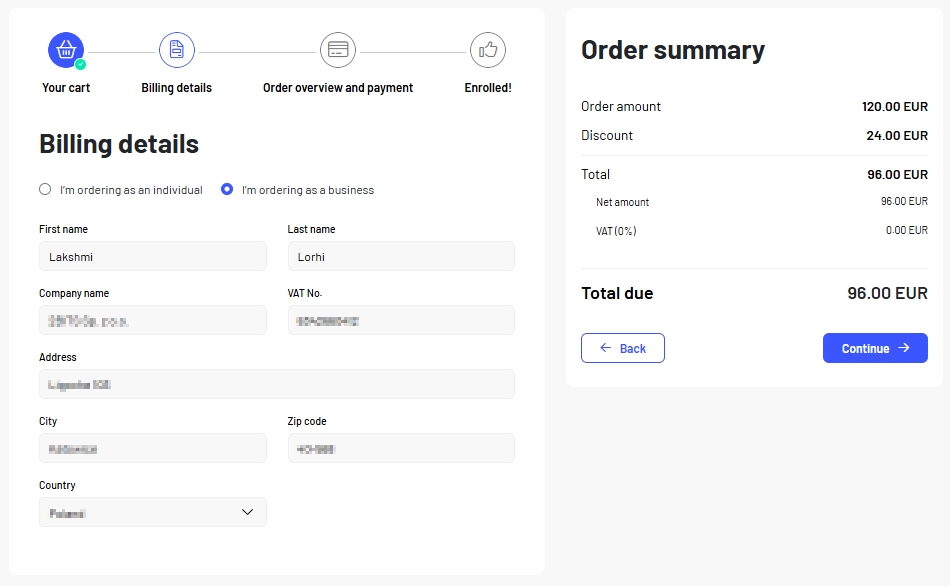
At this stage, choose whether you are making the purchase:
If you are purchasing as an individual, enter the required personal and address information.
If you are purchasing on behalf of a company, select the appropriate option and provide the additional company information, including the company name and VAT number.
You can review the current order summary on the right side of the page at any time, including any discount applied and the final amount due.
Before continuing, make sure your billing information is correct, then select Continue.
The next screen displays a summary of your order.
Review the following:
If you need to correct your billing information, use the available Edit option.
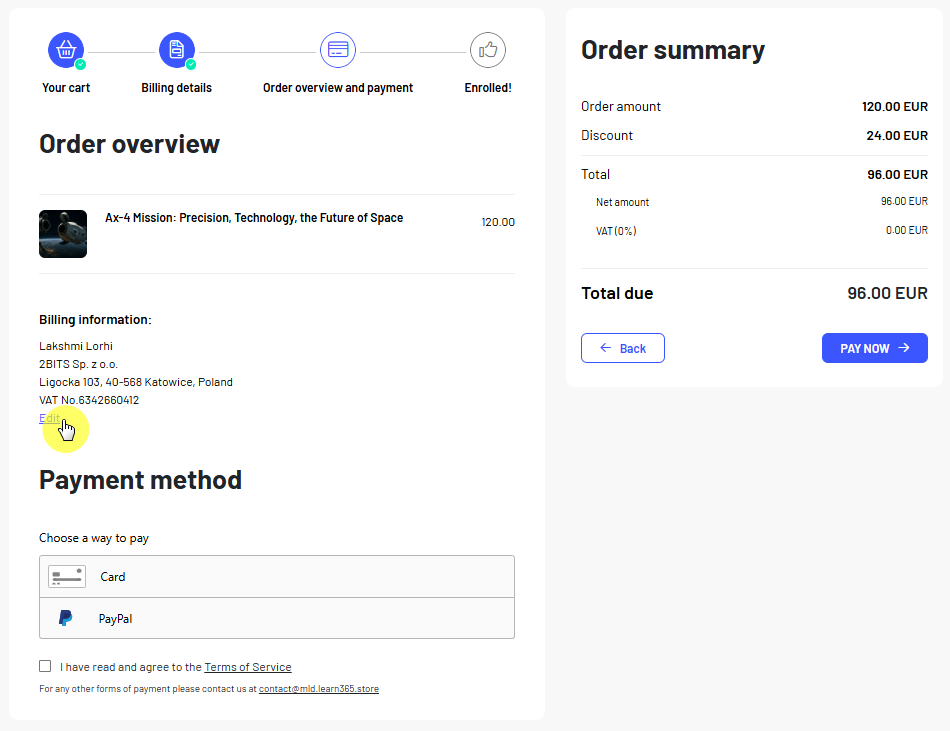
Next, select one of the available payment methods.
Depending on the MyLearningDay configuration, different payment methods may be available, such as credit or debit card payments or PayPal.
Note: Available payment methods depend on the configuration of your MyLearningDay environment.
After selecting a payment method, enter the required payment information by following the instructions displayed on the screen.
Before confirming the payment:
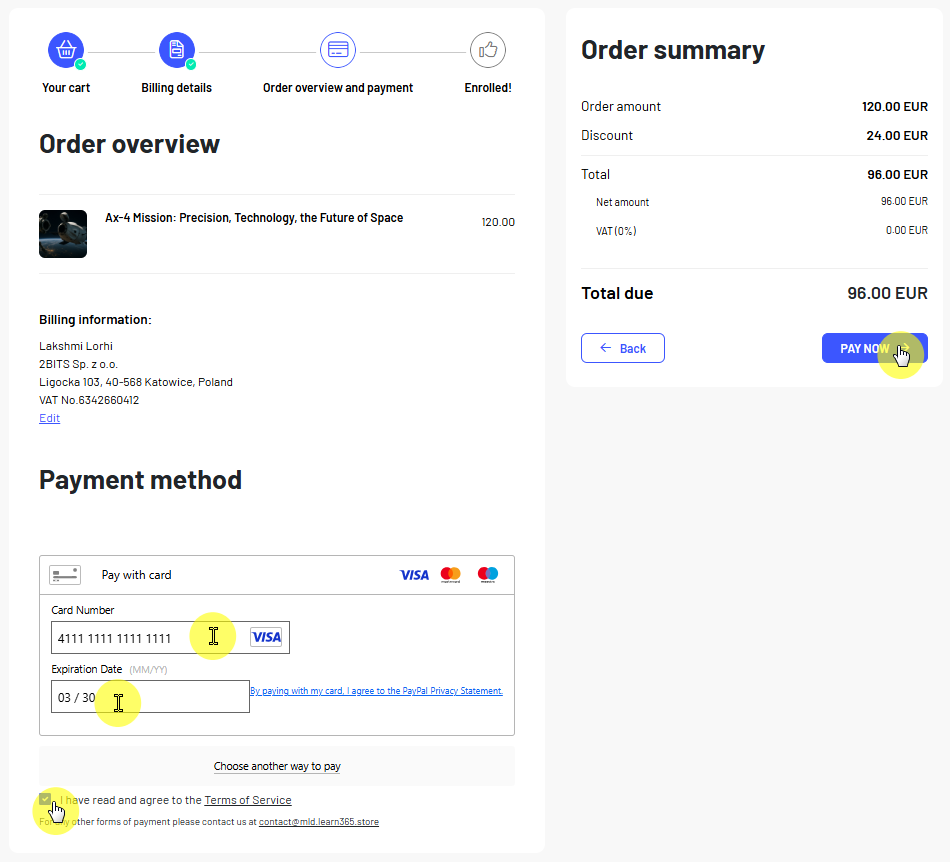
After confirming the payment, wait for the transaction to be processed. Do not close the page or restart the payment process until the transaction result is displayed.
Once your payment has been processed successfully, MyLearningDay confirms your enrollment in the purchased courses.
The confirmation screen includes information such as:
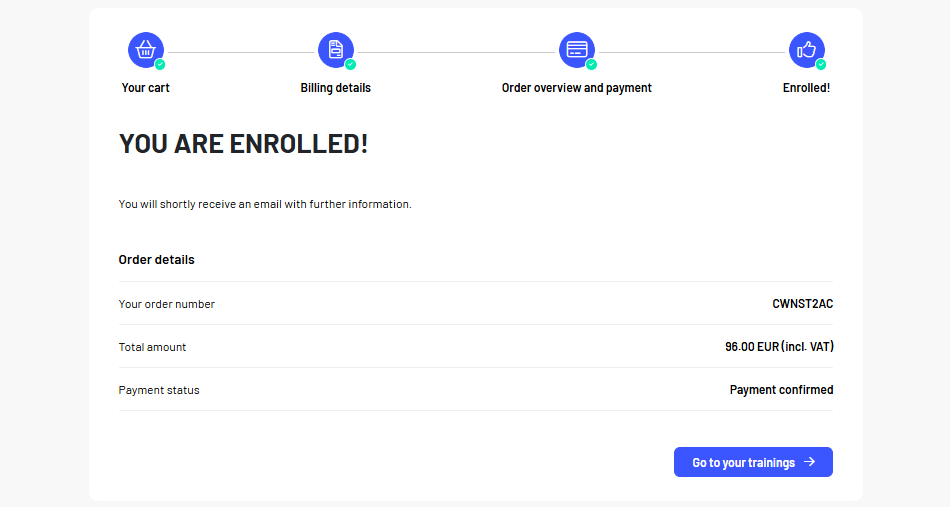
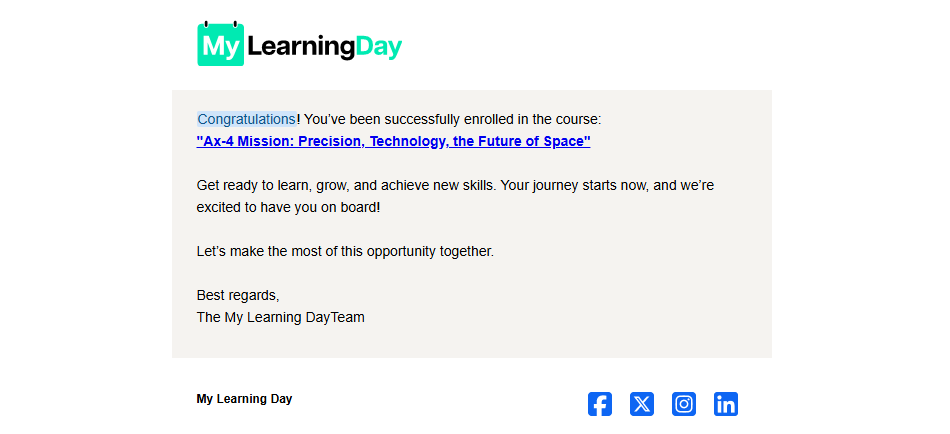
MyLearningDay also informs you that an email with additional information will be sent to the email address associated with your account.
To access the courses you purchased, select Go to your courses.
Your purchased courses are available in My Trainings, where you can start or continue your e-learning.