


In the My Profile section, you can update your personal information, manage your account and notification settings, and change the credentials you use to sign in.
If you are a manager, you can also designate someone to act on your behalf when performing selected tasks related to managing your direct reports.
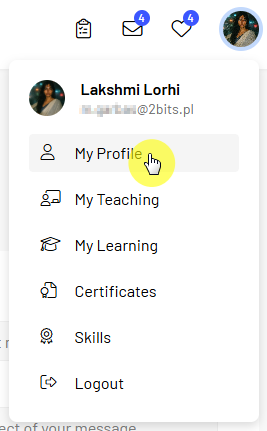
To update the information in your profile:
Here, you can change your profile picture and other information displayed in your profile.
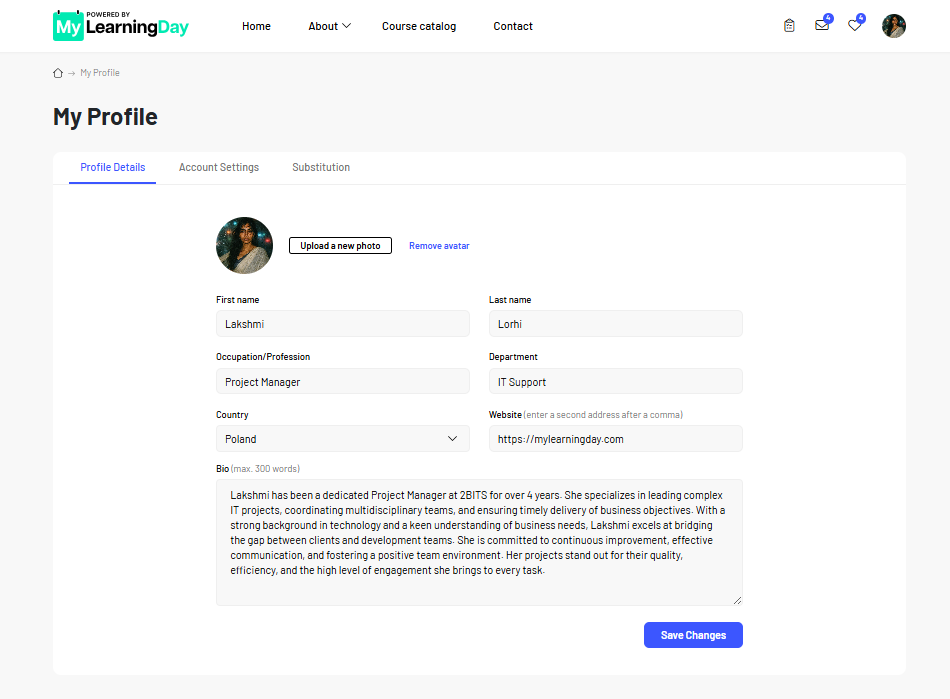
Note: Some information in your profile may be visible to other users in the Community area. Your profile visibility settings determine who can view your profile.
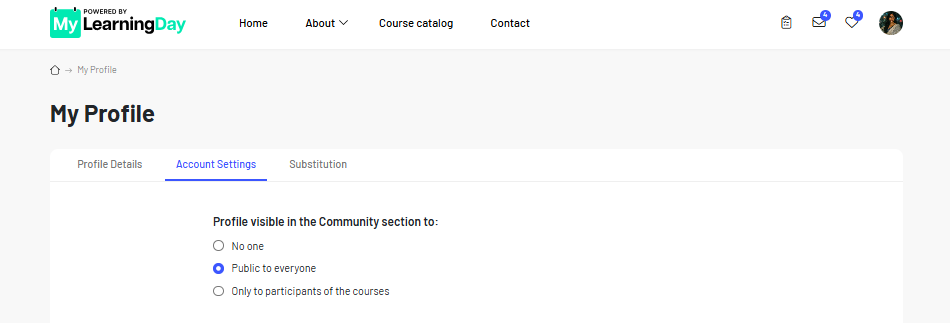
You can decide who can view your profile in the Community area.
To change your profile visibility:
Depending on the selected setting, your profile can be hidden from other users, visible to everyone, or visible only to training participants.
If you do not want other users to be able to find and view your profile, select the option that disables profile visibility.
In your profile settings, you can also choose which notifications you want to receive by email.
To change your notification settings:
Available notifications may include messages about training courses, enrollments, activity related to your account, and other features available in MyLearningDay.

You can change the email address associated with your account in Account Settings.
To change your email address:

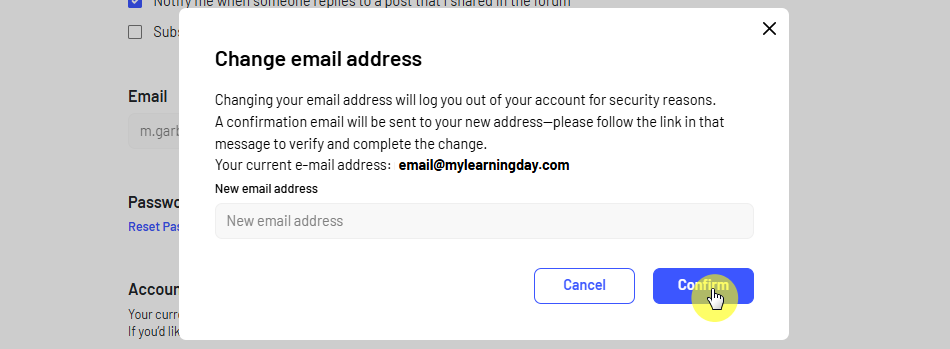
After confirmation, the new email address will be associated with your account.
Important: Entering a new email address does not complete the process. You must confirm the new address using the link sent to you by email before the change takes effect.
If you want to change your password, you can start the process directly from your profile settings.
You do not need to know or enter your current password to start the reset process from here.

 See also: Resetting your password
In Account Settings, you can check your current account type.
If Business Accounts are available in your MyLearningDay deployment, you may also have the option to switch from a user account to a Business Account.

Note: The option to switch to a Business Account is an optional feature and depends on the MyLearningDay configuration.
See also: Business Account
If you no longer want to use your account, you can start the account deletion process in Account Settings.

Important: Account deletion cannot be reversed by the user. Before confirming, make sure you really want to delete your account.
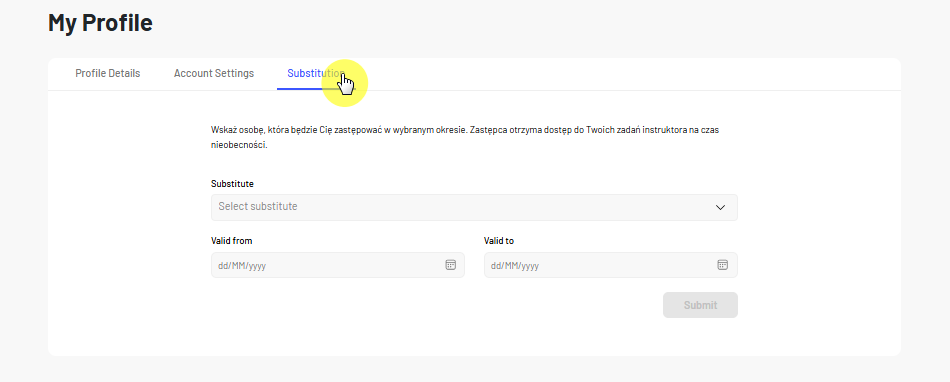
If you are a manager, you can designate another person to act on your behalf for a specified period of time.
During this period, the designated person can perform manager tasks available in MyLearningDay on your behalf. For example, they can enroll your direct reports in training courses and approve their enrollments when manager approval is required.
To set up a delegate:
Before saving, make sure you have selected the correct person and the correct delegation period.
Note: The delegation feature is available only if you have at least one direct report and therefore have a manager role.