


After launching a course, you are taken to the course player, where you work through the individual course elements.
Depending on its configuration, a course may include different types of learning materials, training sessions, tests and quizzes, a forum, and other activities.
To start a course:
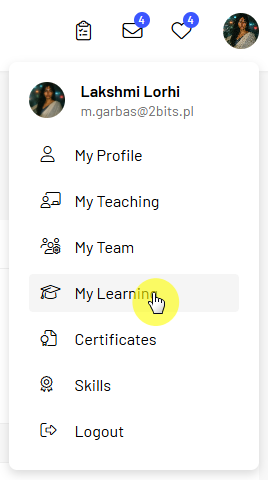
You do not have to complete the entire course in a single session. You can stop learning and return to it later.
When you reopen an unfinished course, MyLearningDay takes you to the first element you have not yet completed. You do not need to find where you left off.
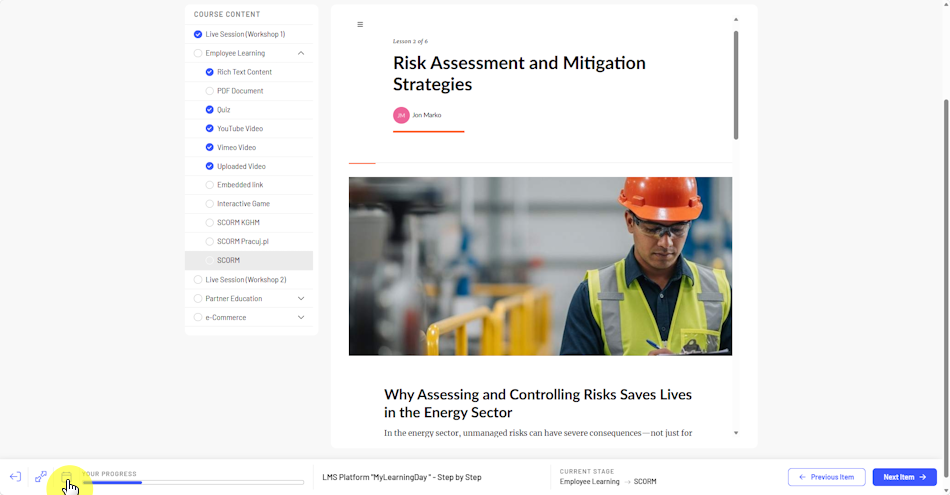
The course structure shows the elements that you can or must complete. The currently open element is displayed in the main area of the player.
While learning, you can see which element is currently active, move between previous and next elements, identify elements you have already completed, and monitor your overall course progress.
As you work through the course, MyLearningDay updates your progress and marks completed elements accordingly.
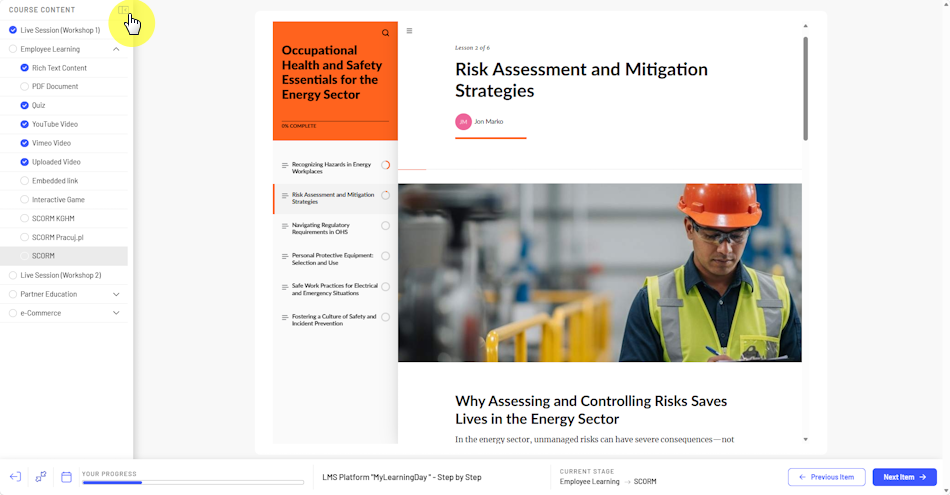
If you need more space to view the content, you can switch the player to full screen mode. You can return to the standard view at any time.
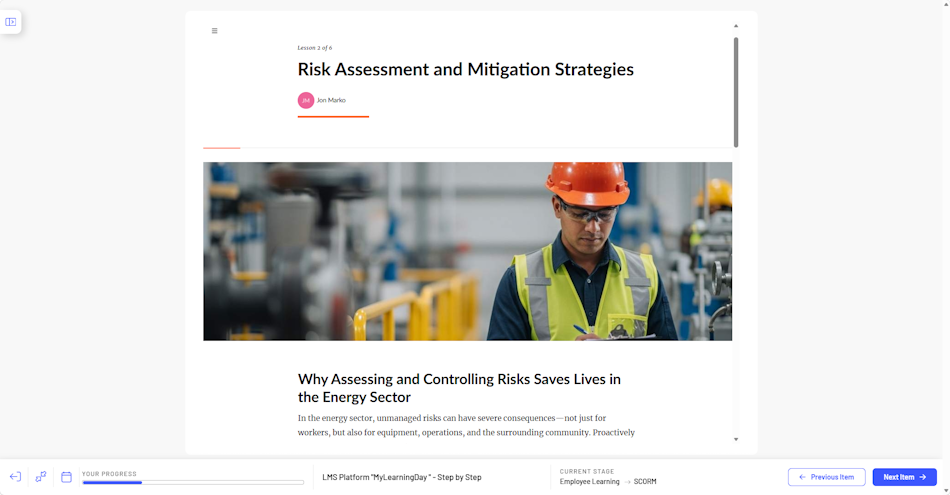
Note: Your ability to move to subsequent elements may depend on the structure and configuration of the course. Some elements may require you to complete other parts of the course first.
A course may contain different types of learning materials. How you work with them depends on the type of element currently open.
You may, for example, read text content and documents, view PDF files, watch videos, use content embedded in the course, open external resources, and complete interactive content, including SCORM packages.
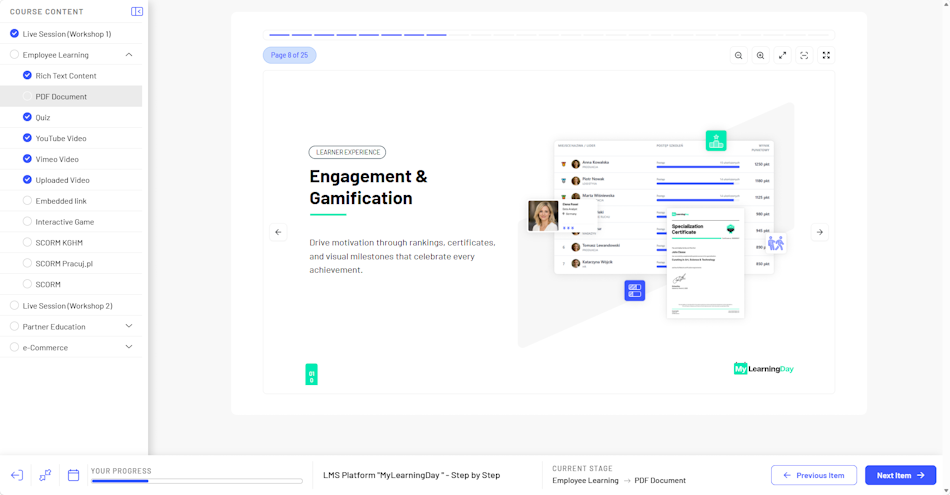
When you have finished working with a learning material, move to the next available course element.
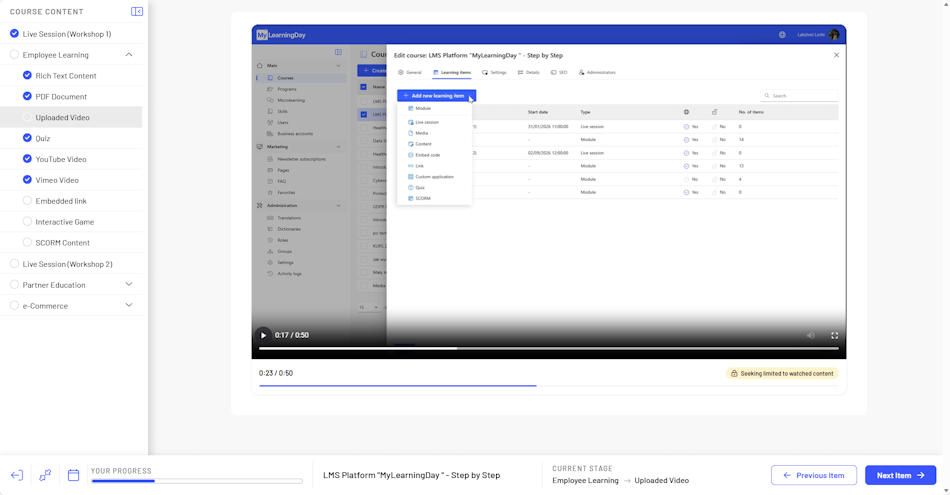
If a course element contains a video, start playback and watch the required portion of the content.
Depending on the course configuration, fast forwarding may be restricted. In this case, watching the entire video may be required to complete the course element.
Note: If you are required to watch the entire video, keep the browser window where the video is playing active. If you switch to another window or minimize the browser, playback is automatically paused because the video is no longer being actively viewed.
Fast forward restrictions may apply to videos uploaded directly to MyLearningDay as well as videos provided through YouTube or Vimeo.
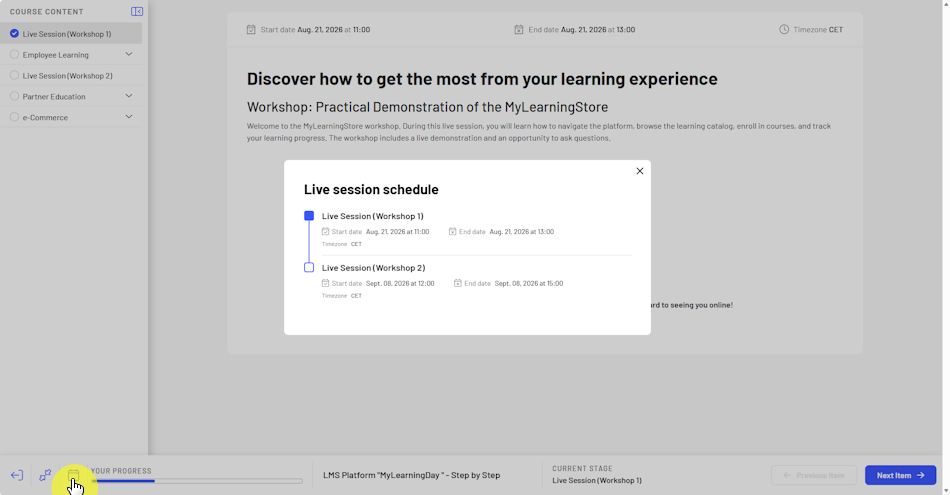
A course may include sessions scheduled for a specific date and time, such as online meetings or other scheduled activities.
If sessions have been scheduled for the course, you can quickly check their schedule from the horizontal bar in the course player. Open the list of scheduled sessions to view their details without having to find each session in the course structure.
You can also open a specific session directly from the course structure.
To participate in a session:
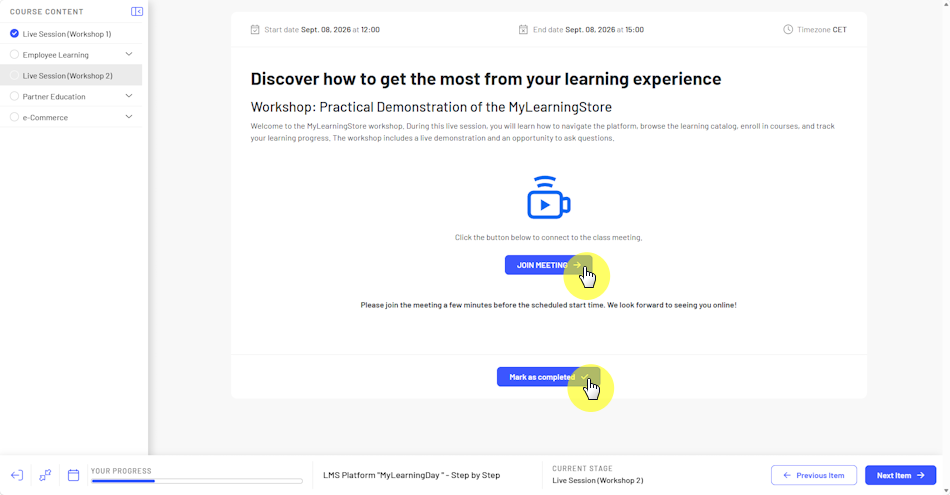
How attendance is recorded depends on the session configuration. If self check-in is not available, your attendance is recorded by the course administrator or session instructor.
Important: Self check-in is not available for every session. If you do not see this option, you do not need to take any additional action.
A course may include tests and quizzes designed to assess your knowledge.
To complete a test or quiz:
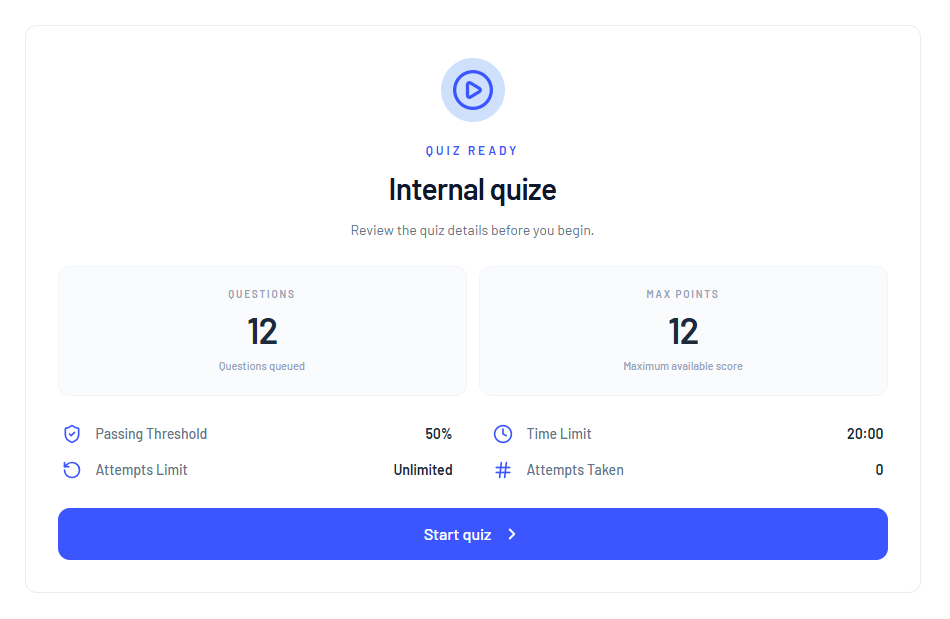
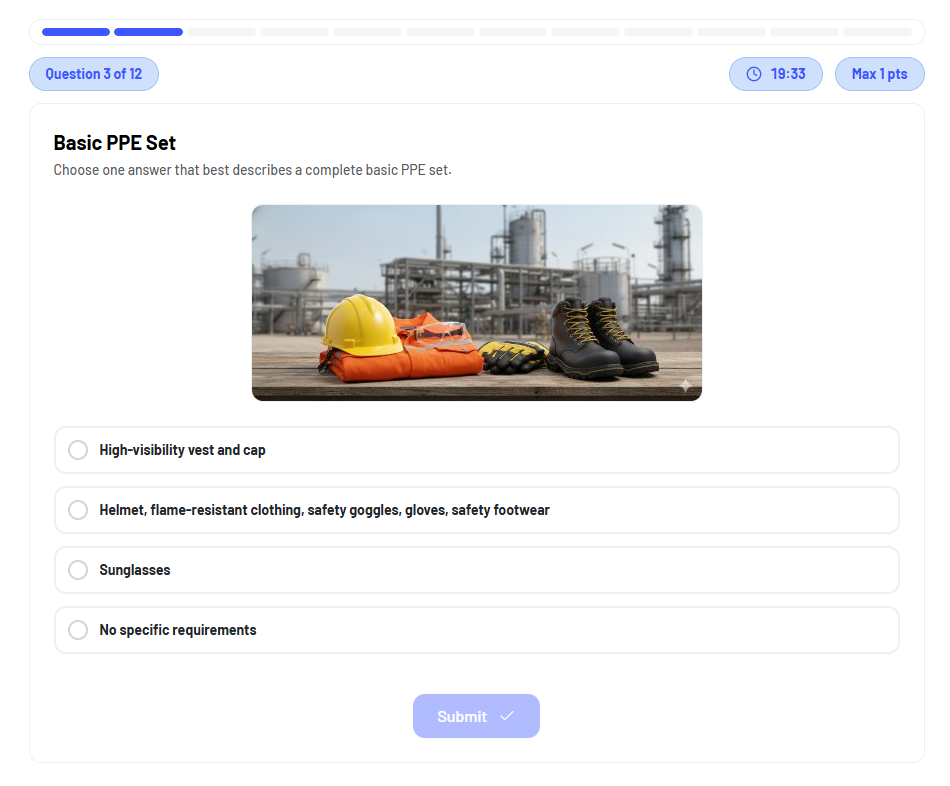
After you complete an attempt, MyLearningDay may display your score, whether you passed, and any available next steps.
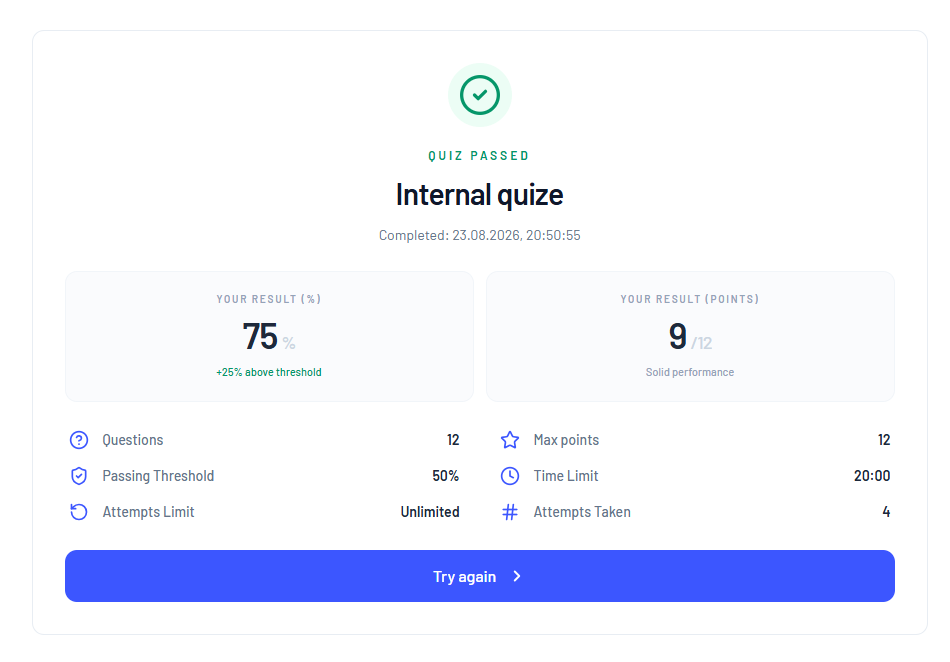
Note: Quiz rules depend on the quiz configuration. They may differ in areas such as the required passing score, the number of available attempts, and whether correct answers are shown after the quiz is completed.
If another attempt is available, you can retake the quiz according to the information displayed in the player.
A forum may be available in a course, allowing you to communicate with other participants.
The forum may be available for a specific course element or as a separate element in the course structure. In the latter case, it can serve as a shared discussion space for all course participants.
To use the forum:
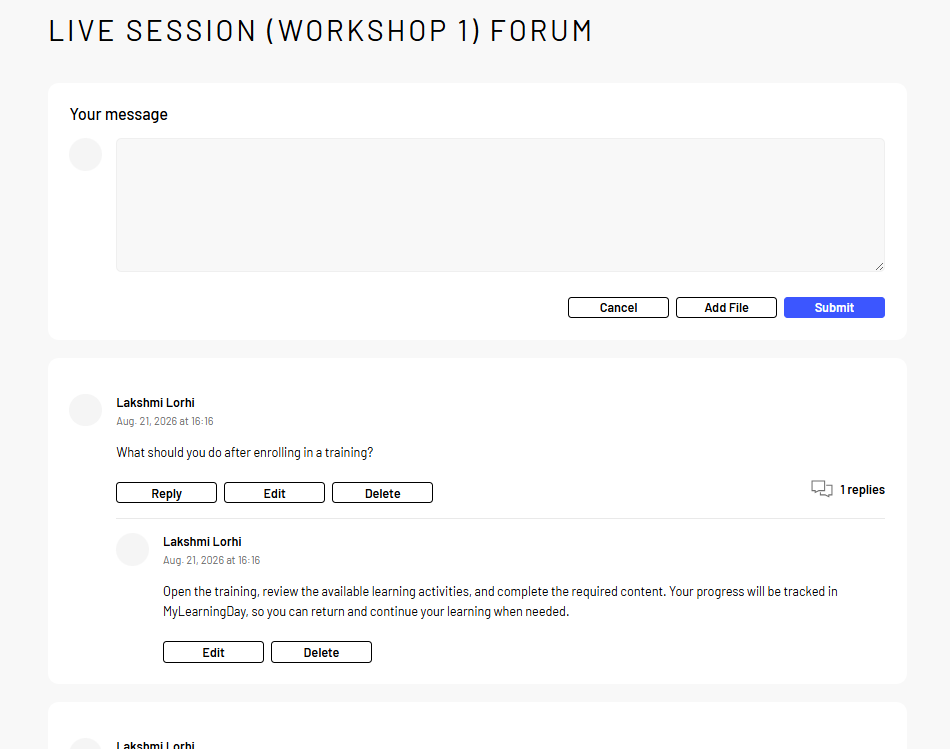
Note: A forum may not be available in every course or for every course element. Its availability and location within the course structure depend on the course configuration.
Your course progress is updated as you complete each element.
To complete a course:
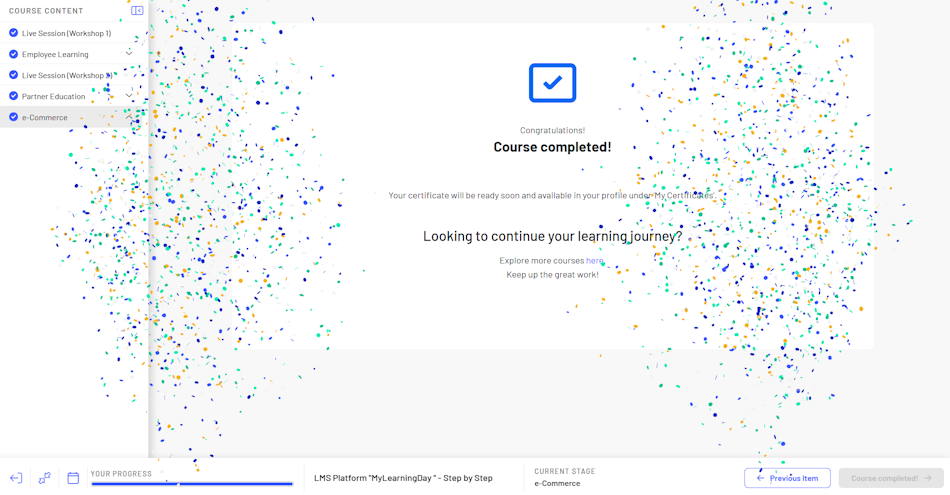
Note: Completion requirements may vary between courses. They may include completing specific materials, attending training sessions, or achieving a required test score.
After you complete the course, its status is updated accordingly in My Trainings.
If a certificate is awarded for completing the course, it will become available according to the rules defined for that course.
 See also: Certificates and Skills